
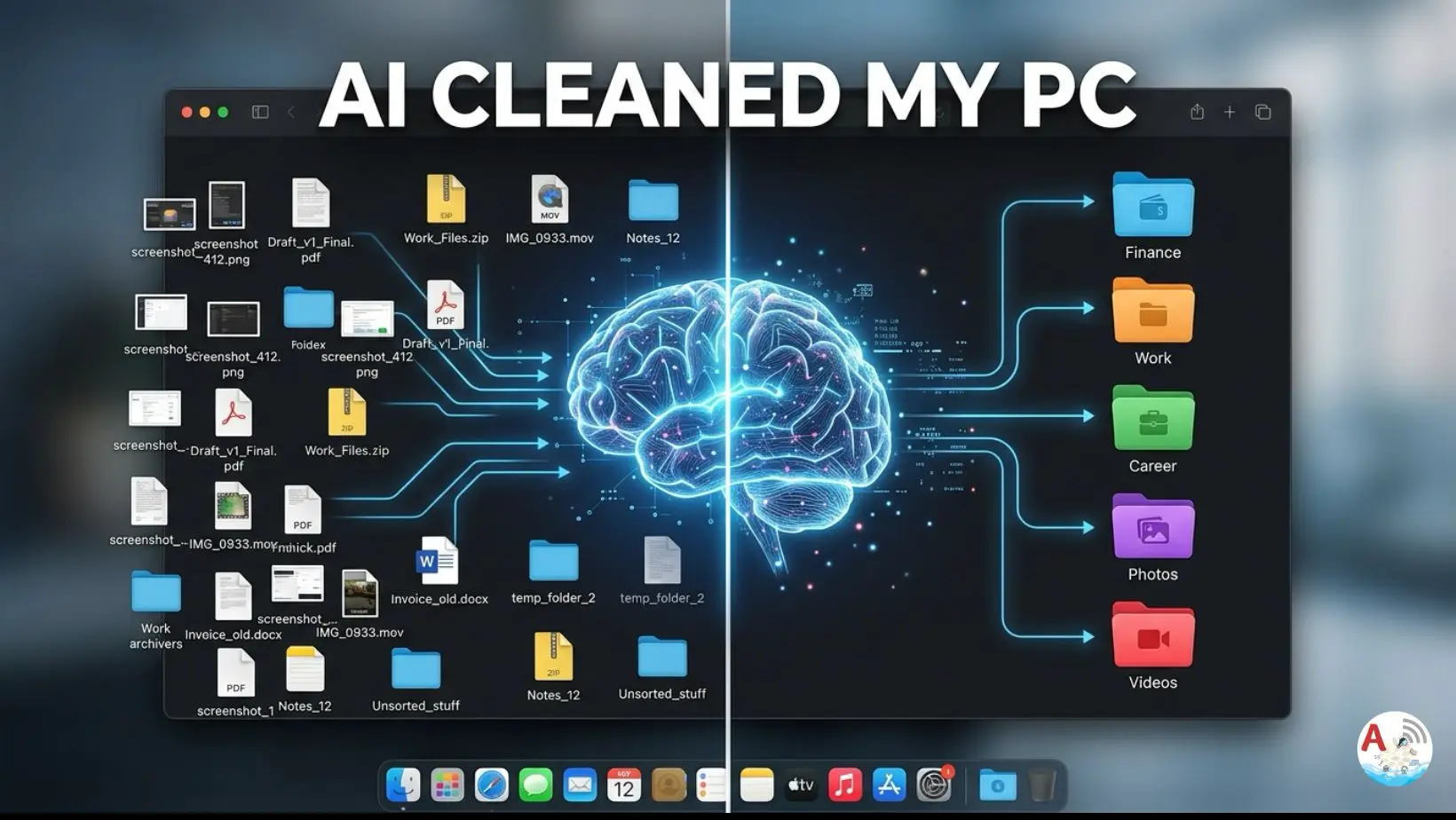
Table of Contents
This guide on AI File Organizer outlines a professional content structure for your technical blog. It focuses on local AI implementation using Ollama and Python, catering to developers interested in automation and LLMs.
Introduction: The Problem of Digital Clutter
We’ve all been there. You start your week with a clean desktop, but by Friday, your screen is a chaotic mosaic of unlabeled PDFs, random screenshots, ZIP files, and installation executables.
As we use our computers every day—downloading work reports, creating new project drafts, editing music, or saving memes—we tell ourselves we’ll “sort it out later.” But “later” rarely comes. Instead, files pile up unknowingly, turning your Desktop and Downloads folder into a digital graveyard. This isn’t just an aesthetic issue; it’s a productivity killer.
The Hidden Cost of a Messy Computer
Digital clutter impacts more than just your wallpaper. It affects your workflow and your machine’s efficiency:
- Wasted Time: Searching for “Final_Draft_v2.docx” in a sea of 500 files costs you precious minutes every day.
- Mental Fatigue: Research shows that visual clutter increases stress and decreases focus. A messy desktop is a constant “to-do” list screaming for your attention.
- Storage Drain: Duplicate files and forgotten installers eat up your SSD storage, eventually slowing down your system performance.
- Security Risks: Leaving sensitive documents (like invoices or IDs) in a general downloads folder makes them harder to track and protect.
Why Manual Cleaning Fails
The reason most of us skip cleaning is simple: It’s boring and repetitive. Sorting files by hand into categories like “Work,” “Finance,” or “Personal” feels like a chore. Most traditional scripts only look at file extensions, putting all your photos in one place, regardless of whether they are for a project or a vacation.
In this blog, we are moving past manual labor. We are going to build a local AI file organizer that understands the context of your files. Whether it’s a song you edited or a bank statement you downloaded, our AI will recognize it and put it exactly where it belongs.
What is Ollama? (The Engine)
Ollama is a lightweight, open-source framework that allows you to run large language models (LLMs) like Gemma, Llama 3, and Mistral locally on your machine.
- Privacy: No data leaves your computer.
- Cost: Completely free to use (no API credits).
- Speed: Low latency since it runs on your local GPU/CPU.
Have a look at the below playlist – https://www.youtube.com/playlist?list=PL04fRXMy5cnZ4idDpAlJNY3hXI6A6eKsQ
Block-by-Block Explanation
Environment Setup & Configuration
We use pathlib for modern path handling and requests to talk to the Ollama API.
- Key Concept: Pointing the script to the right local URL and selecting the model (e.g.,
gemma4:31b-cloud
OLLAMA_URL = "http://localhost:11434/api/generate"
MODEL_NAME = "gemma4:31b-cloud"

# Change this to your Downloads path
PROJECT_FOLDER = Path.home() / "Desktop/Project"
Scanning the Messy Folder
The script iterates through your target directory and collects filenames. It ignores subfolders to avoid recursive loops during the first run.
files = [
    f.name
    for f in PROJECT_FOLDER.iterdir()
    if f.is_file()
]

if not files:
    print("No files found in Project folder.")
    exit()

print("\nFiles Found:\n")
for file in files:
    print("-", file)
The “Magic” Prompt Engineering
This is the most critical part. We tell the AI to act as an “Intelligent File Organizer.”
- Constraint: We force the AI to return Only JSON. This allows our Python script to parse the output without manual intervention.
prompt = f"""
You are an intelligent file organizer.

Your task:
1. Analyze the filenames.
2. Create smart categories.
3. Return ONLY valid JSON.

Rules:
- No explanation
- No markdown
- No extra text
- Only JSON

Example format:
{{
  "Finance": ["invoice.pdf"],
  "Career": ["resume.pdf"],
  "Images": ["photo.png"]
}}

Files:
{files}
"""
Communication with Ollama API
We send the list of files to the local Ollama server. The script waits for the AI to “think” and return a categorized JSON object.
print("\nAnalyzing files using AI...\n")

response = requests.post(
    OLLAMA_URL,
    json={
        "model": MODEL_NAME,
        "prompt": prompt,
        "stream": False
    }
)

result = response.json()["response"]

print("AI Response:\n")
print(result)
The Safety Net (Dry Run & Confirmation)
Before moving a single byte, the script prints an “Organization Plan.” This ensures the AI didn’t hallucinate or miscategorize an important file.
try:
    categories = json.loads(result)
except Exception as e:
    print("\nFailed to parse AI response.")
    print(e)
    exit()

print("\n========== AI ORGANIZATION PLAN ==========\n")

for folder, file_list in categories.items():
    print(f"{folder}:")
    for file_name in file_list:
        print(f"   - {file_name}")
    print()
User Confirmation
After the dry run the next step is to take user confirmation to proceed with the task.
confirm = input("Proceed with organization? (y/n): ")

if confirm.lower() != "y":
    print("\nOperation cancelled.")
    exit()
Shutil Execution
Using shutil.move, the script creates folders dynamically based on the AI’s categories and physically moves the files.
for folder, file_list in categories.items():

    folder_path = PROJECT_FOLDER / folder
    folder_path.mkdir(exist_ok=True)

    for file_name in file_list:

        source = PROJECT_FOLDER / file_name
        destination = folder_path / file_name

        try:
            if source.exists():
                shutil.move(str(source), str(destination))
                print(f"Moved: {file_name} → {folder}")
            else:
                print(f"File not found: {file_name}")

        except Exception as e:
            print(f"Error moving {file_name}: {e}")
Watch the Full Build: Step-by-Step Video Tutorial
In the video below, I walk you through the entire setup of this AI File Organizer
Troubleshooting Guide
| Issue | Solution |
| Connection Error | Ensure Ollama is running in the background (ollama serve). |
| JSON Decode Error | The AI might have added “Here is your JSON” text. Add “Strictly only JSON” to your prompt. |
| Model Not Found | Run ollama pull gemma4:31b-cloud in your terminal first. |
| Permission Denied | Ensure the script has read/write access to the PROJECT_FOLDER. |
Can I use a smaller model?
Yes! If your RAM is limited, try gemma:2b or phi3. They are incredibly fast for simple tasks like file naming.
Will this delete my files?
No. shutil.move is a move operation. However, always keep a backup before running automation scripts on sensitive data.
Can it organize images based on what is inside them?
This specific script uses filenames. For visual content, you would need a Multimodal model (like Moondream or LLaVA).